
LOCAL-FIRST FILE MANAGEMENT

Sync folders, remove duplicates, and reclaim storage

FileLever gives you clear, focused tools for keeping folders up to date, removing duplicate files, and finding large files consuming storage across local folders, external drives, direct Dropbox locations, and locally synced Google Drive folders. Review every result, select exactly what you want, and take action individually or in bulk.

Private by default

No FileLever cloud is required.

Review before action

See what will change before files are copied, moved, or deleted.

Flexible control

Select individual files or manage multiple files at once.

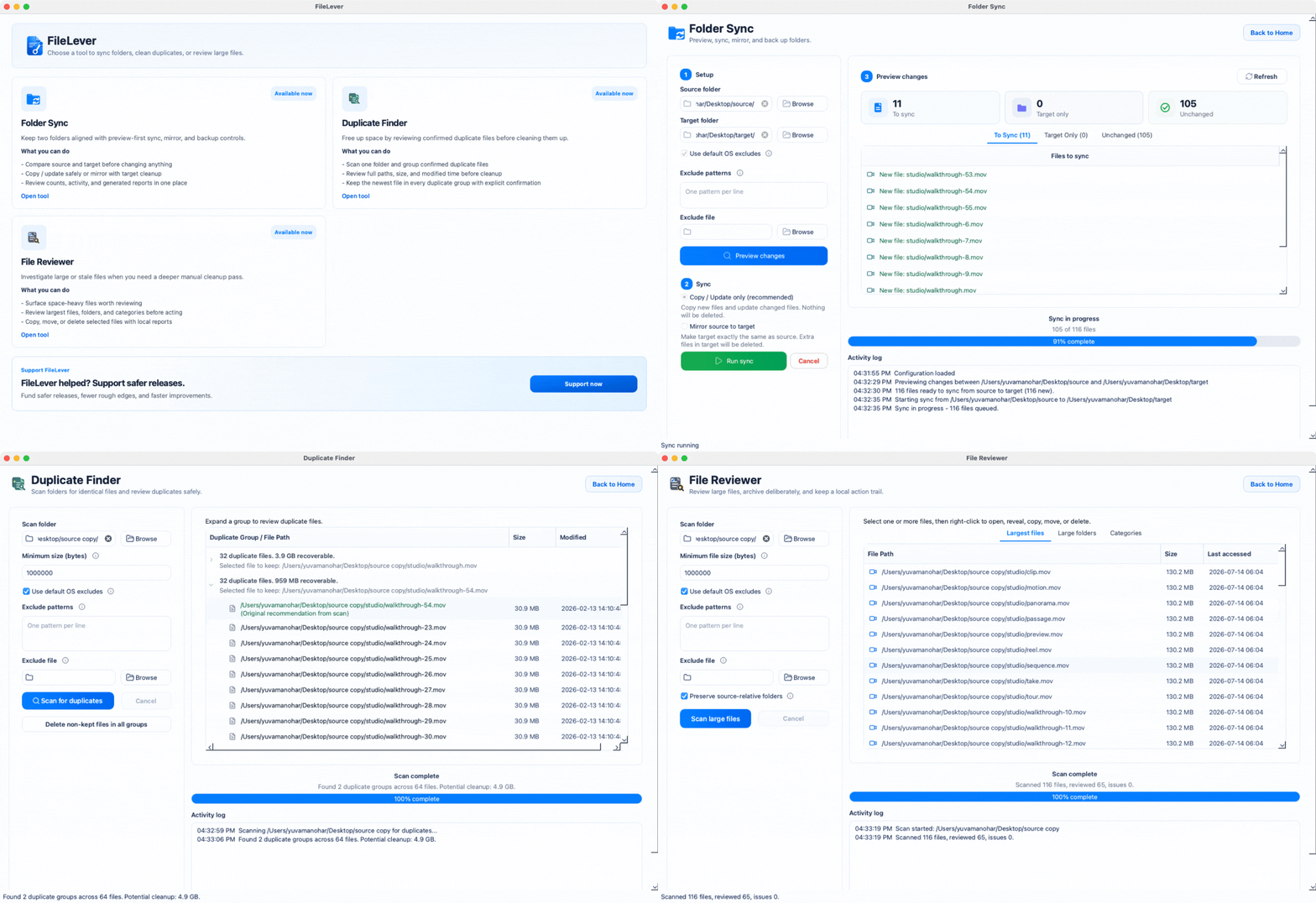
FileLever folder sync screenshot showing source and target folders with a reviewed list of pending file changes

See FileLever in action

One desktop app for sync, duplicate cleanup, and storage review

Watch FileLever compare folders, review exact duplicate files, and identify large files taking up space across local folders, direct Dropbox locations, and Google Drive folders synced locally with the Google Drive client so you can inspect every result before taking action.

Folder Sync

Keep folders and backups up to date

Manually comparing folders is slow, and copying everything again wastes time. FileLever compares the source and target, shows what changed, and lets you sync only what is needed across local folders, direct Dropbox locations, and locally synced Google Drive folders.

  • Pick source and target folders
  • Use local folders, direct Dropbox locations, or synced Google Drive folders
  • Copy/update sync
  • Optional mirror mode
  • Preview new, changed, unchanged, and target-only files

Explore Folder Sync

Mirror Mode

Make the target match the source—intentionally

Old or unwanted files can remain in the target even after a regular sync. Mirror Mode identifies target-only files and lets you review them before they are removed.

  • Explicit opt-in
  • Confirmation before changes
  • Target-only deletes shown in preview
  • Use only when the target should match the source

Safety note

Mirror Mode is optional. Regular Copy/Update sync does not remove target-only files.

Exclusions

Skip files that do not belong in the sync

Temporary files, operating-system metadata, caches, and generated folders can clutter sync results. Exclusions keep the comparison focused on the files that matter.

  • Default OS junk filters
  • Custom exclude patterns
  • In-app activity log

Duplicate File Finder

Find duplicate files and recover wasted storage

Photos, documents, downloads, and backups often get copied into multiple folders. FileLever groups exact duplicates together so you can compare their locations, choose what to keep, and remove the remaining copies from local folders, Dropbox, or locally synced Google Drive folders.

  • Scan local folders, Dropbox, or synced Google Drive folders
  • Size grouping before hashing
  • Content-hash checks before confirmation
  • Byte-for-byte confirmation
  • Delete only after explicit approval

How duplicates are verified

FileLever narrows files by size and then confirms exact matches using file hashing and byte-level comparison.

Explore Duplicate File Finder

Large File Reviewer

Find the files consuming the most storage

Large videos, archives, installers, downloads, and forgotten project files can occupy significant space while remaining buried across folders, drives, direct Dropbox locations, and locally synced Google Drive locations.

FileLever gives you a size-sorted view so you can review the biggest files first and decide what should remain.

  • Scan internal drives, external drives, Dropbox, or locally synced Google Drive folders
  • See the biggest files first
  • Review before deleting anything
  • Free up space with more confidence

Explore Large File Reviewer

Control Before Cleanup

File operations should never feel like a blind action.

FileLever keeps important decisions visible before files are copied, updated, moved, or deleted.

Preview first

Understand what the operation will do before running it.

Clear selections

See exactly which files are selected, retained, moved, or removed.

Selective or bulk actions

Handle one file carefully or process many files efficiently.

Local processing

Review and manage files without uploading them to a cloud service.

Explicit deletion

Destructive actions require a deliberate choice and confirmation.

One Simple Approach

Scan, review, and act.

1

Choose a workflow

Select Folder Sync, Duplicate File Finder, or Large File Reviewer based on the problem you need to solve.

2

Choose your folders

Select local folders, external drives, backup locations, or archives.

3

Review the results

Inspect folder differences, duplicate groups, or files sorted by size.

4

Select what should happen

Choose files individually or use bulk-selection controls.

5

Take action

Sync folders, delete unnecessary copies, or move large files to an archive.

Explore FileLever

Choose the tool for the job.

Spend less time comparing folders and searching for files.

Download FileLever to safely sync folders, remove duplicate files, review large files, and reclaim storage from one local-first desktop app.

Use cases

Start with the outcome you need

Whether you are protecting an archive, sorting out repeated exports, or reclaiming project storage, begin with a workflow built around the result you want.