
A repeatable archive routine
Use the same deliberate comparison for each backup location whenever a shoot, project, collection, or album changes.
Protect media archives
A photographer's finished shoots, a video editor's source footage, a designer's project archive, or a carefully built music library deserves more than an occasional drag-and-drop copy. Protect what you cannot lose: choose one working library as the source of truth, then compare it with each backup location before you multiply current copies. FileLever keeps the changes, target-only files, and sync choice visible for every individual backup run.
FileLever is available now on macOS. Windows and Linux builds of FileLever are planned. Your files stay under your control.
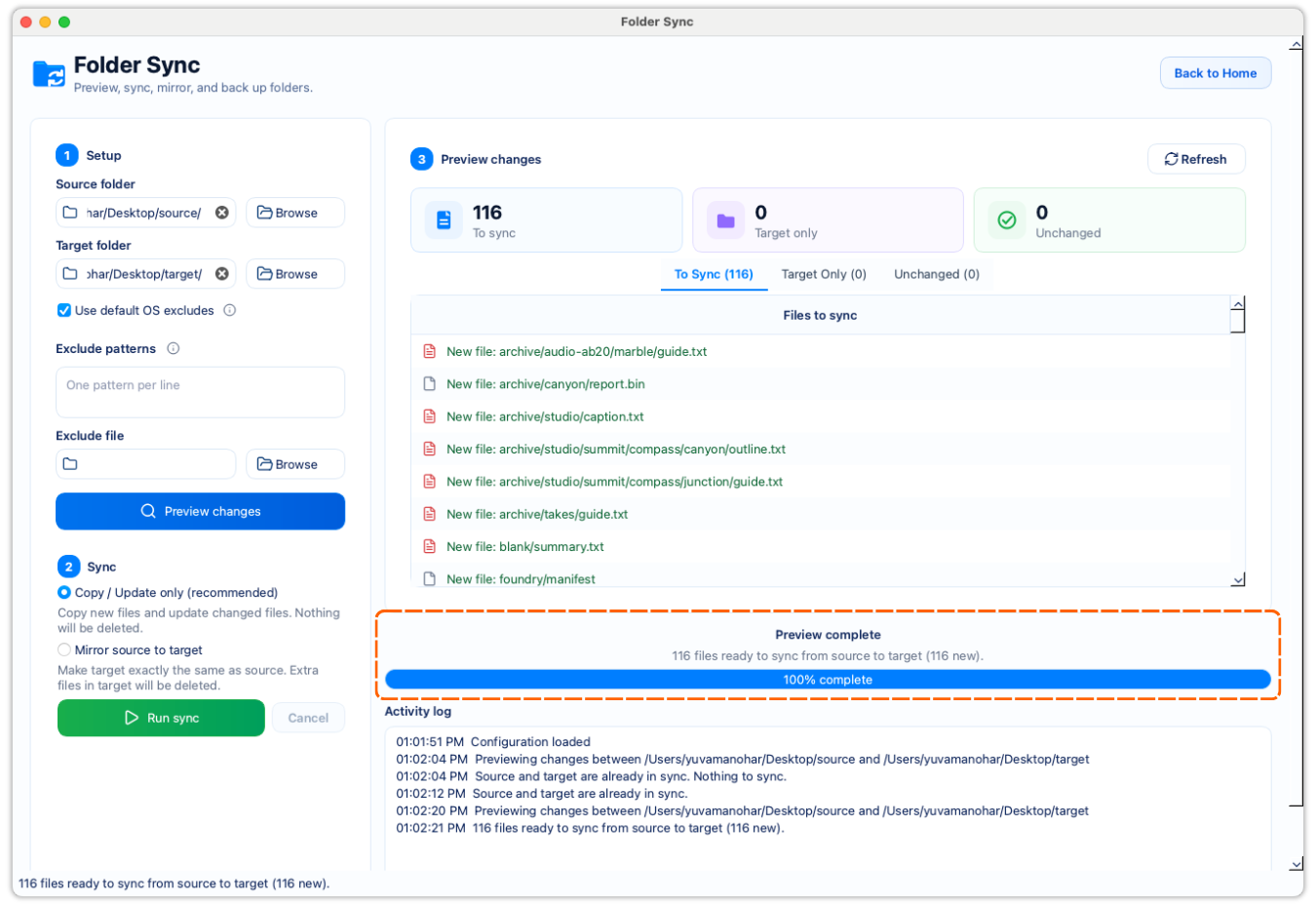
Compare before refreshing each backup instead of recopying an entire media library.
Keep archive-only edits, exports, and historical material visible with copy/update.
Use direct Dropbox access when you authorize it; no locally synced Dropbox folder is required.
A deliberate workflow
Choose the photo, video, design, music, or other media folder you actively maintain. Treat it as the source for this backup session rather than trying to decide between several drifting copies.
Compare the working library with the matching folder on an external drive, then repeat the same review for a Dropbox archive if you use one. FileLever makes each source-to-destination decision explicit; it does not claim to run or monitor an automatic multi-destination backup plan.
Check the preview before copying. A target-only file may be an older edit, an alternate export, or material that belongs only in that archive—not automatically something to remove.
Copy/update brings missing and changed source files to the selected backup while preserving target-only files. It is usually the right starting point for media archives with valuable history.
If a specific backup must exactly match the working library, inspect every target-only file first and then choose mirror deliberately. For Dropbox, check your recovery settings before a remote cleanup action.
Use the same deliberate comparison for each backup location whenever a shoot, project, collection, or album changes.
See whether each backup is current and what differs before deciding how to update it.
Copy/update preserves destination-only files, so a backup can retain intentional archive material while receiving current work.
Product walkthrough
The walkthrough shows how FileLever compares two folders, separates new and changed files from target-only material, and lets you choose the appropriate sync mode only after review.
Common questions
FileLever is a deliberate backup workflow for a chosen source and destination. Compare your working library with each backup location and confirm each update separately; it does not claim to schedule or monitor an automatic multi-destination backup plan.
Start with copy/update for most archives because it preserves files that exist only in the backup. Use mirror only for a backup location you intentionally want to match the source exactly after reviewing target-only files.
Yes. FileLever can connect directly to the Dropbox account you authorize and compare a local archive with a Dropbox folder. Remote writes and mirror cleanup require the appropriate authorization and explicit confirmation.
Treat it as a review decision. Copy/update keeps it in place; mirror may remove it when you explicitly choose a replica workflow. Check its path and purpose before changing anything.
FileLever is available now on macOS, with Windows and Linux planned.