Keep your Mac backups in sync with a clear preview before anything
changes
Protect valuable folders by choosing what to copy from and what to
update. Exclude temporary, generated, or private files, then preview
every change—files to add, update, leave untouched, or remove—before
you run sync across local folders, external drives, direct Dropbox
locations, and Google Drive folders synced locally with the Google
Drive client.
Dropbox is a direct, authorized remote workflow. Google Drive remains a
local-folder workflow: use the Google Drive client to keep Drive folders
available locally first.
Product walkthrough
See Folder Sync from preview to confirmation
Watch how FileLever compares two folders, makes pending changes visible, and lets you choose copy/update or mirror only after reviewing the plan.
A clear workflow
Sync in five deliberate steps
01
Choose your source and target
Choose the folder that defines the current version and the folder you want to bring up to date. It could be a project and its external-drive backup, a photo library and an archive, two active working folders, or a local folder paired with a Google Drive folder synced locally by the Google Drive client.
02
Decide what to exclude
Leave temporary, generated, or private files out of the comparison. Add patterns such as *.log or cache/ directly, or load an exclude file. Common operating-system clutter is ignored by default.
03
Preview the differences
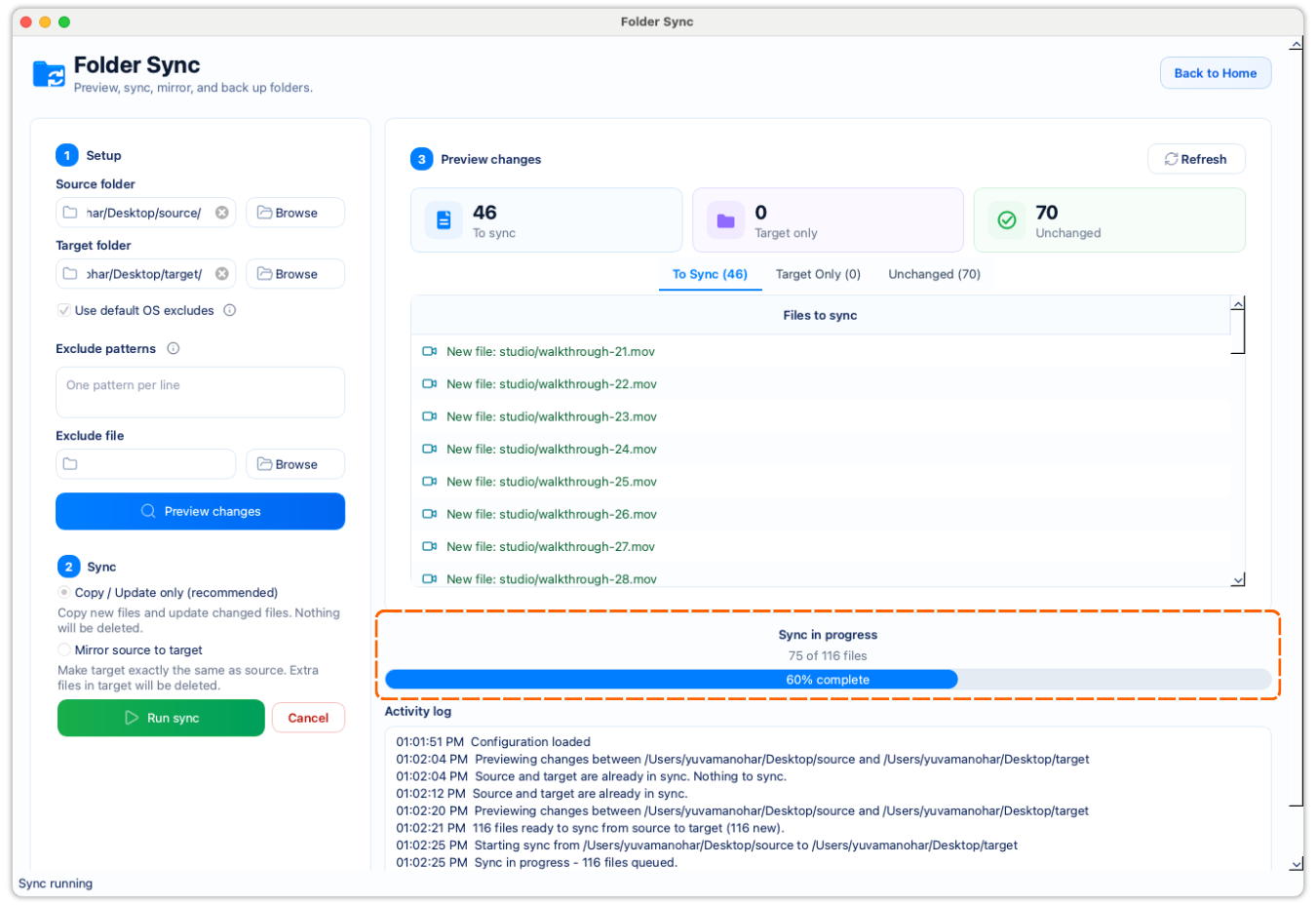
FileLever compares both folders before a sync begins, then sorts the results into clear groups so you can see the outcome in advance.
04
Choose the right sync mode
Use copy/update to refresh the target without removing its extra files. Choose mirror only when the target should deliberately become a replica of the source.
05
Confirm and review the result
Confirm the reviewed plan to run the sync. FileLever applies the selected mode, then shows the completed result so you can see whether the source and target are current.
Keep backups in sync with preview
See every file group before the backup or sync runs
Protect valuable folders by previewing what will sync, what stays target-only, and what is unchanged—then choose copy/update or mirror with a clear plan.
01Confirm missing and changed source files before they reach the target.
02Treat target-only files as a deliberate keep-or-remove decision.
03Choose copy/update to keep backups current or mirror for reviewed replicas.
Before anything changes
Preview the differences
The preview separates the work that needs attention from the files
that can stay as they are.
To Sync
Source files missing from the target, along with files whose
target copy needs updating.
Target Only
Files found in the target but not in the source. Copy/update
leaves them untouched.
Unchanged
Files that already match in both folders, with no work required.
Choose intentionally
Two modes, two different outcomes
Mode
What it does
Best for
Copy / Update
Adds missing source files and refreshes changed ones. It keeps
files that exist only in the target.
Backups, archives, and any target that may hold extra files
worth keeping.
Mirror source to target
Brings the target in line with the source, then removes files
found only in the target.
Deliberately maintained replicas that should match the source
exactly.
A familiar use case
Example: updating an external-drive backup
Your laptop project folder is the source; the external drive is the
target.
After previewing, you may see:
30 files under To Sync: 24 new files and 6 changed files
3 Target Only files—perhaps older exports that live only on the
drive
140 unchanged files
Choose Copy / Update to retain those exports. Use Mirror only when
removing them is the right way to make the backup match the source.
Preview the differences first. Keep backups in sync when you are ready.
Start with a clear comparison and stay in control through final confirmation—no FileLever cloud, just local and authorized folder paths.