
Find the differences that matter
Know whether a file is missing, changed, already current, or an extra copy in the target before you decide what should happen to it.
Protect copies with FileLever
Two folders can look almost identical while hiding missing files, older edits, and copies that exist only in the backup. FileLever is free to download on macOS—compare folders before you sync to protect what matters across drives or cloud-backed folders. See what is missing, what changed, what already matches, and what exists only on one side, then choose the next action with confidence.
FileLever is available now on macOS. Windows and Linux builds of FileLever are planned. Your files stay under your control.
Written by FileLever Team · Workflow guidance reviewed September 7, 2026
Imagine a working folder named Project on your Mac and a Project Backup folder on an external drive. The table is an illustrative file set, not a captured scan. Choose the working folder as Source and the backup as Target.
Make a small test pair with disposable files first. Add one new file to Source and leave an older export only in Target. Compare without running a sync, then review the full paths in each result group.
| Relative path | Source / Target | Review in FileLever |
|---|---|---|
| new-shot.jpg | Source only; not yet backed up | To Sync: a missing target copy. |
| project-notes.txt | Source has a newer, longer edit; Target has the old copy | Review the proposed update in To Sync before replacing the backup. |
| reference.pdf | The same untouched file in both folders | Unchanged: no copy is proposed. |
| exports/previous-cut.mov | Target only; deliberately retained export | Target Only: copy/update keeps it; mirror may remove it. |
Review the proposed actions before choosing copy/update, mirror, or no action. A target-only file is not automatically redundant, and a changed file is not automatically the version you want to keep. If both folders contain independent edits, inspect those files first.
The groups describe FileLever's sync decision. Do not treat Unchanged as a separate byte-for-byte archive validation or expect a line-by-line text editor. Use a content comparison when you need to inspect the actual changes within a file.
See missing, changed, target-only, and unchanged files as separate decisions.
Compare two folders before syncing, mirroring, moving, or deleting anything.
Use local folders, external drives, direct Dropbox locations, or locally synced Google Drive folders.
A deliberate workflow
Pick the folder that should define the current version as the source and the folder you want to inspect or update as the target. This can be two local folders, an external-drive backup, a direct Dropbox location, or a Google Drive folder already synced locally by Google's desktop client.
Exclude temporary files, caches, generated output, or unrelated folders before comparing. A focused comparison makes it easier to reason about the files that actually belong in the sync decision.
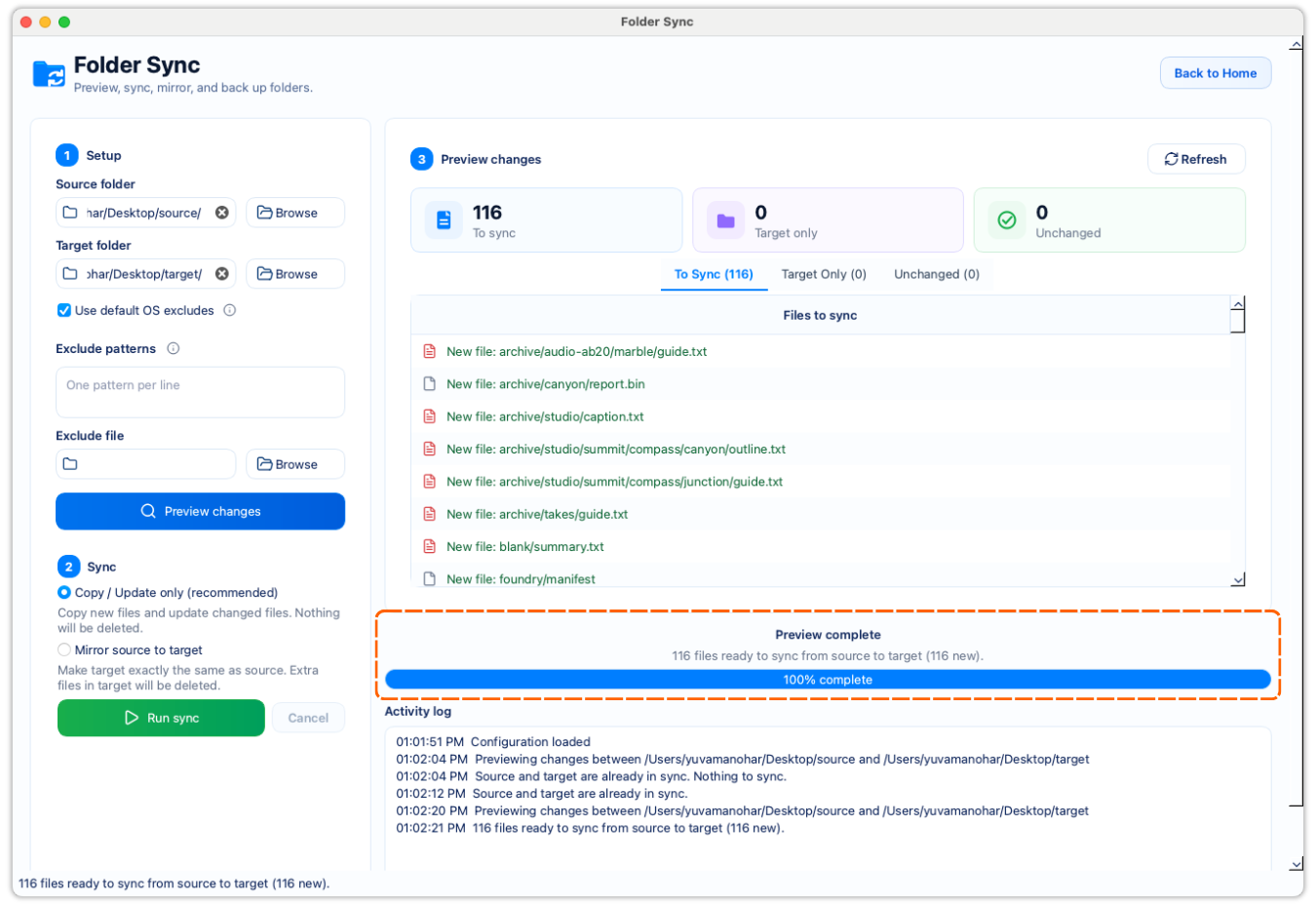
Read each result group: To Sync contains source files missing from the target or needing an update; Target Only contains files found only in the target; Unchanged files already match. These categories answer different questions, so do not collapse them into one bulk list.
Target-only files might be old exports, a deliberate archive, or evidence that you picked the wrong target. Keep them with copy/update unless you have reviewed them and genuinely want the target to be an exact replica.
Use copy/update to add missing source files and refresh changed ones while preserving target-only files. Use mirror only when the target should match the source and you are prepared for reviewed target-only cleanup. If the preview is surprising, make no change and revisit the folder pair.
After a sync, review the result while the folder pair is still fresh in your mind. A repeatable compare-first routine is safer than assuming a previous successful run makes the next one safe.
Know whether a file is missing, changed, already current, or an extra copy in the target before you decide what should happen to it.
Copy/update, mirror, and no action are all valid outcomes. The preview gives you the evidence to choose the one that matches the job.
Clear categories and full file context make it easier to catch a wrong folder pair before a routine sync becomes a destructive one.
Product walkthrough
This demo shows FileLever comparing two folders, separating missing and changed source files from target-only and unchanged files, and making the next sync decision clear before any changes are applied.
Common questions
Open FileLever, choose a source and target folder, review missing, changed, target-only, and unchanged files in the preview, then choose copy/update, mirror, or no action. FileLever is free to download on macOS.
In FileLever, select the two local directories as the source and target, then review missing, changed, target-only, and unchanged files before choosing whether to sync. For a read-only command-line comparison, use the linked Terminal folder-diff guide.
A folder diff reports what differs without changing either folder. Folder sync is a separate decision: review the differences first, then use copy/update to preserve target-only backup files or mirror only when you deliberately want an exact replica.
Download FileLever for macOS at no cost, compare the two folders, and inspect every difference group before you sync. You can stop after the comparison if you only needed a folder diff.
It separates source files that need to sync, target-only files, and unchanged files. Files to sync include source files that are missing from the target or whose target copy needs updating.
Yes. Review the comparison first and choose whether to take a sync action after you understand the differences.
Yes. FileLever is free to download on macOS and shows missing, changed, target-only, and unchanged files before you choose copy/update, mirror, or no action.
Treat them as a decision point. Copy/update keeps them, which is usually right for backups and archives. Mirror can remove them only when you deliberately want the target to match the source.
Yes. Choose the mounted external drive or a folder on it as one side of the comparison, then review the preview before updating the backup or archive.
Dropbox can be selected directly after you authorize the account. For Google Drive, sync the folder locally with Google Drive for desktop first, then choose that local folder in FileLever.
FileLever is available now on macOS, with Windows and Linux planned.