
Choose a folder to scan
Select the folder, drive, archive, photo library, Dropbox folder, or Google Drive folder on your Mac that you want to review. Make sure important files already have a backup elsewhere.
Duplicate File Finder for macOS
On your Mac, FileLever scans a local folder, direct Dropbox folder, or Google Drive folder synced locally with the Google Drive client; checks which files are truly identical; and lets you review every duplicate group before you remove anything.
FileLever does not send your file inventory to its own servers. Nothing is deleted until you explicitly approve it. FileLever asks for Dropbox permission before it can remove files there. Google Drive handles updates to Google Drive folders on your Mac.
A clear, safe process
Select the folder, drive, archive, photo library, Dropbox folder, or Google Drive folder on your Mac that you want to review. Make sure important files already have a backup elsewhere.
Set a minimum file size, and leave out files or folders that do not belong in the review—such as caches, temporary files, or application data. Add exclude patterns directly or load an exclude file; common operating-system clutter is excluded by default.
Matching names do not make matching files. FileLever groups likely matches by size, then checks their contents before showing them as duplicates. For Dropbox, it uses Dropbox’s own file check where available.
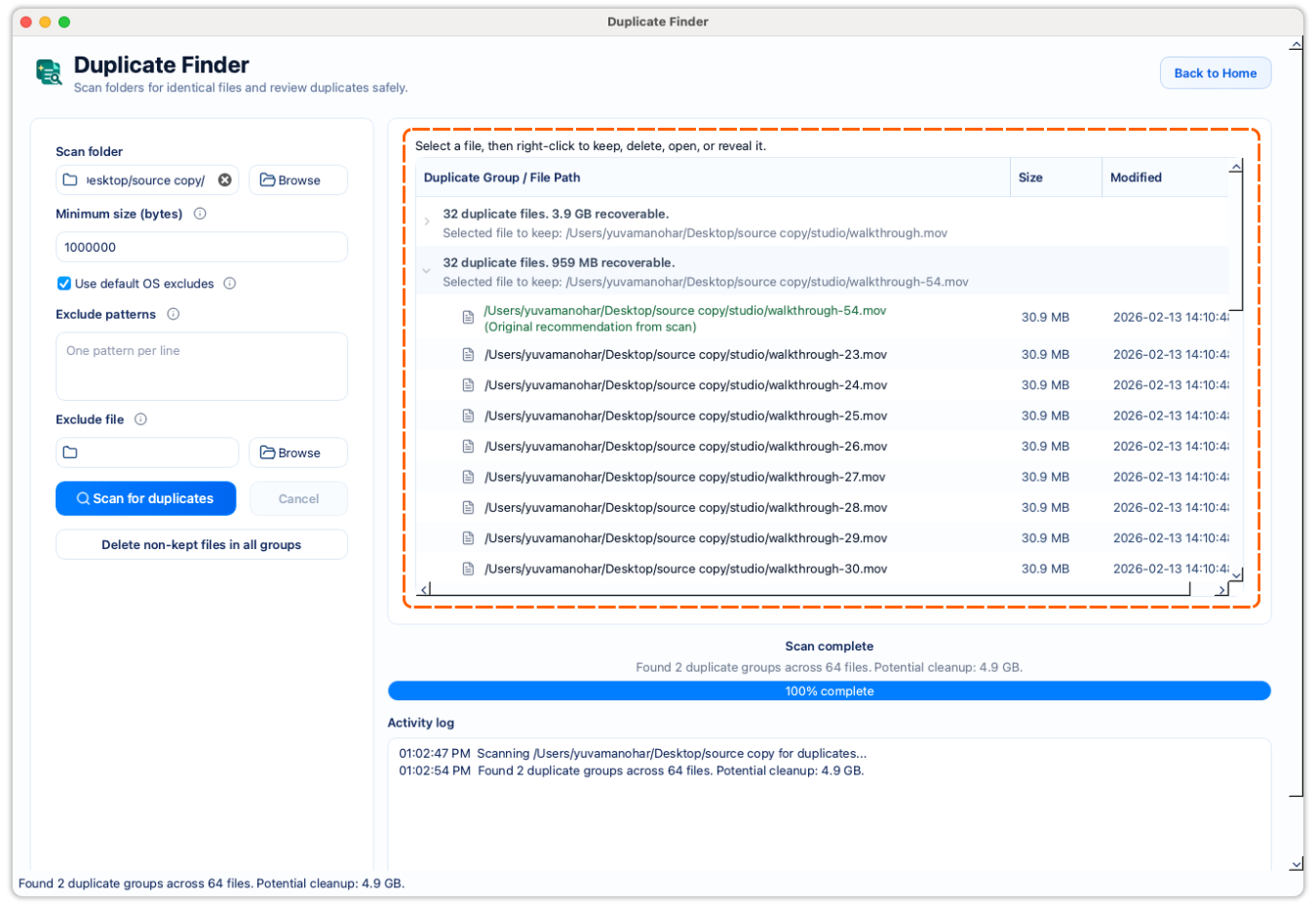
See every matching copy together, including its name, location, size, and the space you could free up. Choose the copy to keep, then remove only copies you have reviewed. FileLever asks for Dropbox permission before it can remove files there. In a Google Drive folder on your Mac, Google Drive handles the update afterward.
Clear extras after protection
FileLever presents confirmed duplicates together so you clear extras deliberately—compare paths, choose the keeper, and see recovery opportunity before removing extras.
Check before removing
Finding files with the same name is easy. Knowing they are safe to remove is harder.
Files with different sizes cannot be duplicates, so they do not need a deeper comparison.
FileLever compares the contents of files that could match instead of relying on names or dates. It uses Dropbox’s own file check where available.
FileLever checks that matching candidates have the same contents before it presents them as duplicates.
You choose which copy stays and which confirmed extras, if any, should be removed.
Review before removal
Each group keeps matching files together and makes the potential space recovery visible before you decide what to do.
| What you see | What it means |
|---|---|
| Duplicate group | Two or more files confirmed to have identical contents. |
| Keep | The copy you want to retain, based on its folder, filename, and useful location. |
| Remove | A confirmed matching copy you have chosen to clean up. |
| Space you can free | Storage that could be recovered by removing the extra copies you select. |
| Skipped or unprocessed | Files FileLever could not scan. They remain separate from confirmed duplicate results. |
Keep the decision visible
A familiar use case
You scan a photo archive and find three exact copies of the same image:
/Photos/2024/Family/IMG_1042.jpg/Downloads/IMG_1042 copy.jpg/External Drive/Old Camera Import/IMG_1042.jpgFileLever confirms that the three files contain the same data. Keep the organized library copy, remove the download and old import copies, and free up space without guessing whether they are actually the same image.
Scan carefully, review every group, and clean up duplicates on your terms across local folders, Dropbox, and locally synced Google Drive folders.
Nothing is deleted until you explicitly approve the cleanup.