
Choose a folder to review
Select the drive, project folder, Downloads folder, media archive, backup folder, Dropbox folder, or Google Drive folder on your Mac that you want to inspect. Make sure important files have a backup elsewhere first.
Large File Reviewer for macOS
On your Mac, FileLever scans a local folder, external drive, Dropbox folder, or Google Drive folder synced locally with the Google Drive client; brings the largest files to the surface; and helps you review them before you delete, move, or archive anything.
Nothing moves or deletes without your explicit confirmation. Dropbox actions require write access to the account you authorize; Google Drive client sync locations remain local actions.
A clear, safe process
Select the drive, project folder, Downloads folder, media archive, backup folder, Dropbox folder, or Google Drive folder on your Mac that you want to inspect. Make sure important files have a backup elsewhere first.
Set a minimum file size to skip everyday files and focus on the ones most likely to matter—old videos, installers, exports, archives, virtual machines, or forgotten backups. Exclude caches, temporary folders, or generated project files when they do not belong in the review.
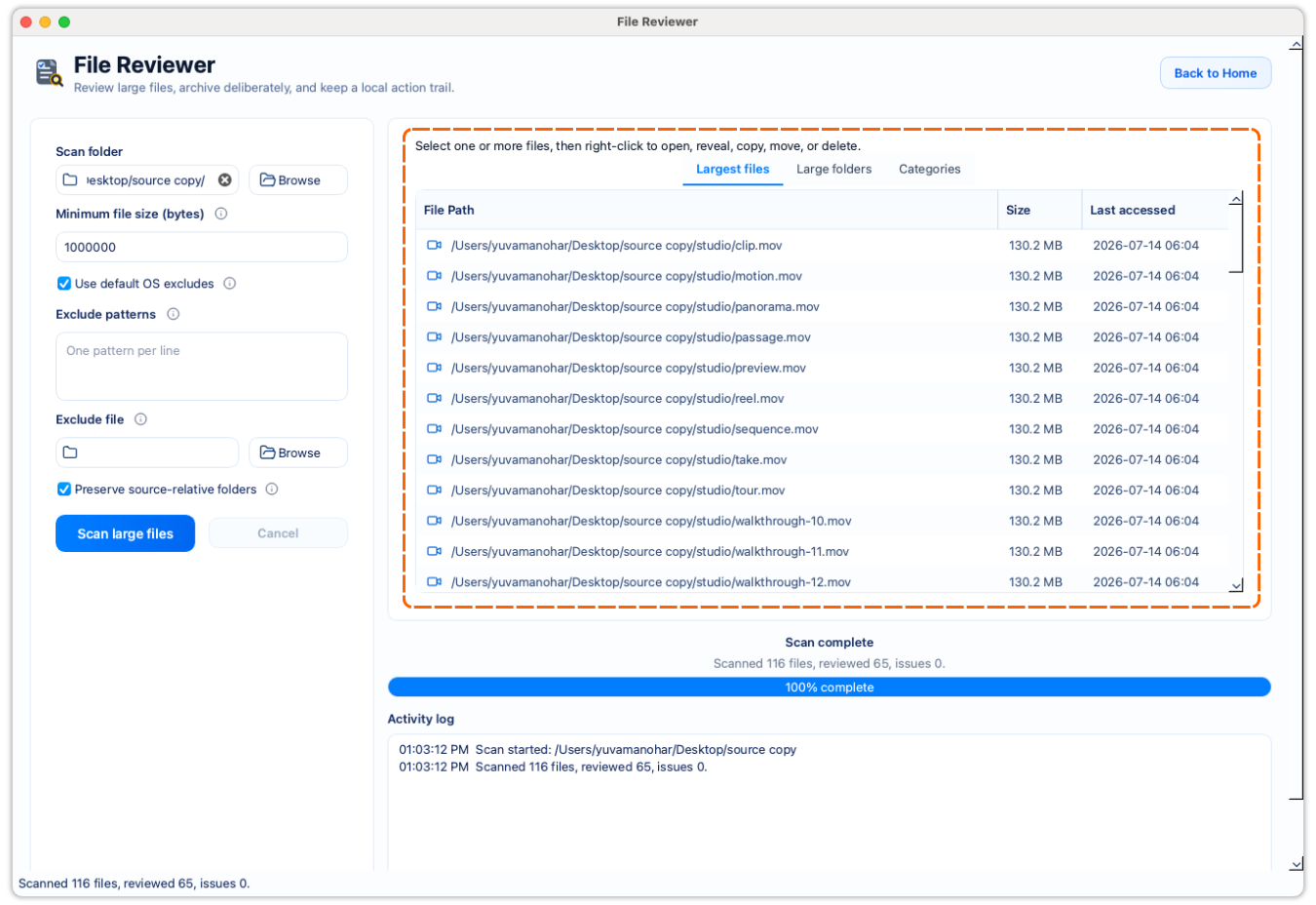
Review files by size with their full path, category, and modified date. Switch between the largest individual files, folders where storage is accumulating, and the categories using the most room.
Open or reveal a file before deciding. Keep it, copy it to an archive, move it after checking the new copy, or delete it only when you no longer need it. FileLever asks for Dropbox permission before it can change files there. In a Google Drive folder on your Mac, Google Drive handles the update afterward.
Reclaim with context
Size-ranked review keeps paths visible so you can archive or delete exports—not protected backups—after you prove what each file is for.
See where space goes
The reviewer gives you several ways to understand where storage is concentrated, so you can move from a large number to a useful decision.
Home folder review
Files larger than 500 MB
| File | Size | Category | Review |
|---|---|---|---|
| video-export.mov | 14 GB | Video | Open · Archive |
| old-installer.dmg | 8 GB | Installer | Reveal · Delete |
| project-archive.zip | 6 GB | Archive | Copy · Move |
Review the path and purpose before choosing an action.
Your decision, made visible
| Action | What it helps you do |
|---|---|
| Open or Reveal | Check a file and its location before making a decision. Reveal opens the local file on disk. |
| Copy to archive | Create an archive copy elsewhere while keeping the original where it is. |
| Move to archive | Move a file after you have checked the new copy. |
| Delete | Remove files you have reviewed and explicitly approved for cleanup. |
A familiar use case
You scan your home folder with a minimum size of 500 MB. FileLever highlights:
Open or reveal each item, keep the files that matter, move the archive to an external drive, and delete only files you have checked are safe to remove. Instead of hunting through folders manually, start with the biggest storage wins.
No blind bulk deletion
Review them locally, keep what is valuable, and clear space with confidence.
Nothing moves or deletes without your explicit confirmation.