
Avoid needless recopying
Start from the differences instead of copying an entire folder again.
Protect copies on Mac
Photos, projects, and archives deserve more than one copy. Keep an external-drive backup current without recopying everything or guessing what changed. FileLever compares the folders locally, separates new and changed files from target-only material, and lets you preview the update before you choose copy/update or mirror.
FileLever is available now on macOS. Windows and Linux builds of FileLever are planned. Your files stay under your control.
Written by FileLever Team · Workflow guidance reviewed August 13, 2026
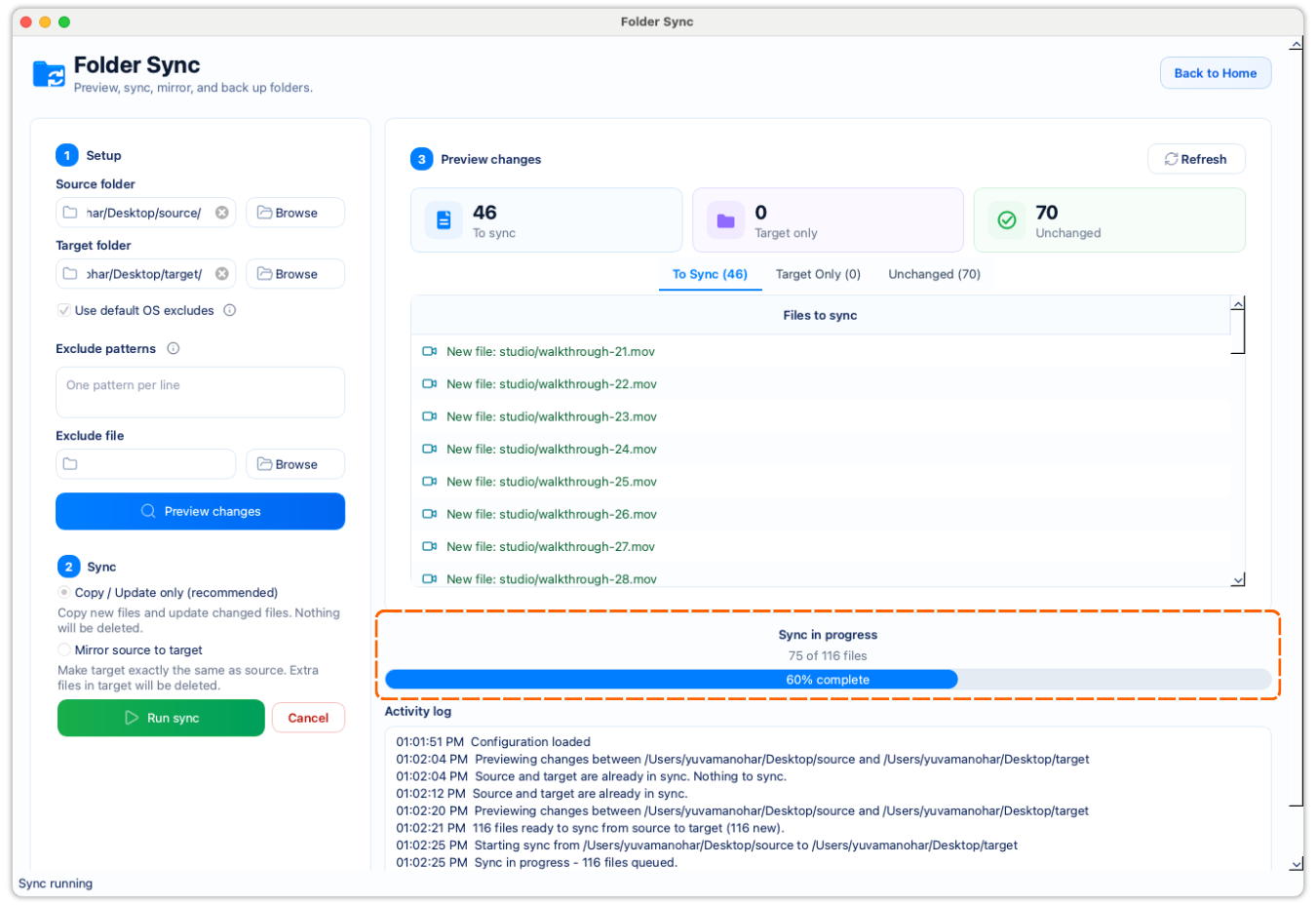
Preview the folder differences before the copy begins.
Use copy/update to keep target-only files on the backup drive.
Keep the workflow local on your Mac without uploading files.
A deliberate workflow
Set your current Mac folder as the source and the external-drive folder as the target.
Leave out caches, generated files, or other folders you do not want to copy.
See new and changed files that need to sync, unchanged files that already match, and target-only files that exist only on the backup drive before any copy begins.
Choose copy/update to preserve target-only files such as an older export or archive. Choose mirror only when the drive should deliberately match the source exactly.
Review the completed run while the source and target are still familiar. A clear result gives you a safer baseline for the next backup.
Start from the differences instead of copying an entire folder again.
Review target-only files before deciding whether they should remain on the drive.
File comparison happens on your computer; your folders do not need to be uploaded.
Product walkthrough
This demo shows FileLever comparing a Mac folder with a backup folder, previewing new and changed files, and letting you choose copy/update or mirror only after reviewing the differences.
Common questions
No. Copy/update adds missing source files and refreshes changed ones while leaving target-only files in place.
Use mirror only when you intentionally want the external-drive folder to match the source exactly. Review target-only files carefully before confirming it.
Run a comparison first. FileLever shows which source files are missing or changed in the target, which files already match, and which files exist only on the drive.
Usually no. Start with a comparison so you can copy only the missing or changed files and retain a clear view of what is already current.
FileLever is available now on macOS, with Windows and Linux planned.