
Find the biggest opportunities
Start with storage-heavy files instead of manually browsing every nested folder.
Reclaim Dropbox storage
Free space when the backup is real. Large videos, old installers, exports, and project archives can make a Dropbox folder difficult to manage—FileLever brings the biggest files to the surface directly from Dropbox so you can inspect their context before acting.
FileLever is available now on macOS. Windows and Linux builds of FileLever are planned. Your files stay under your control.
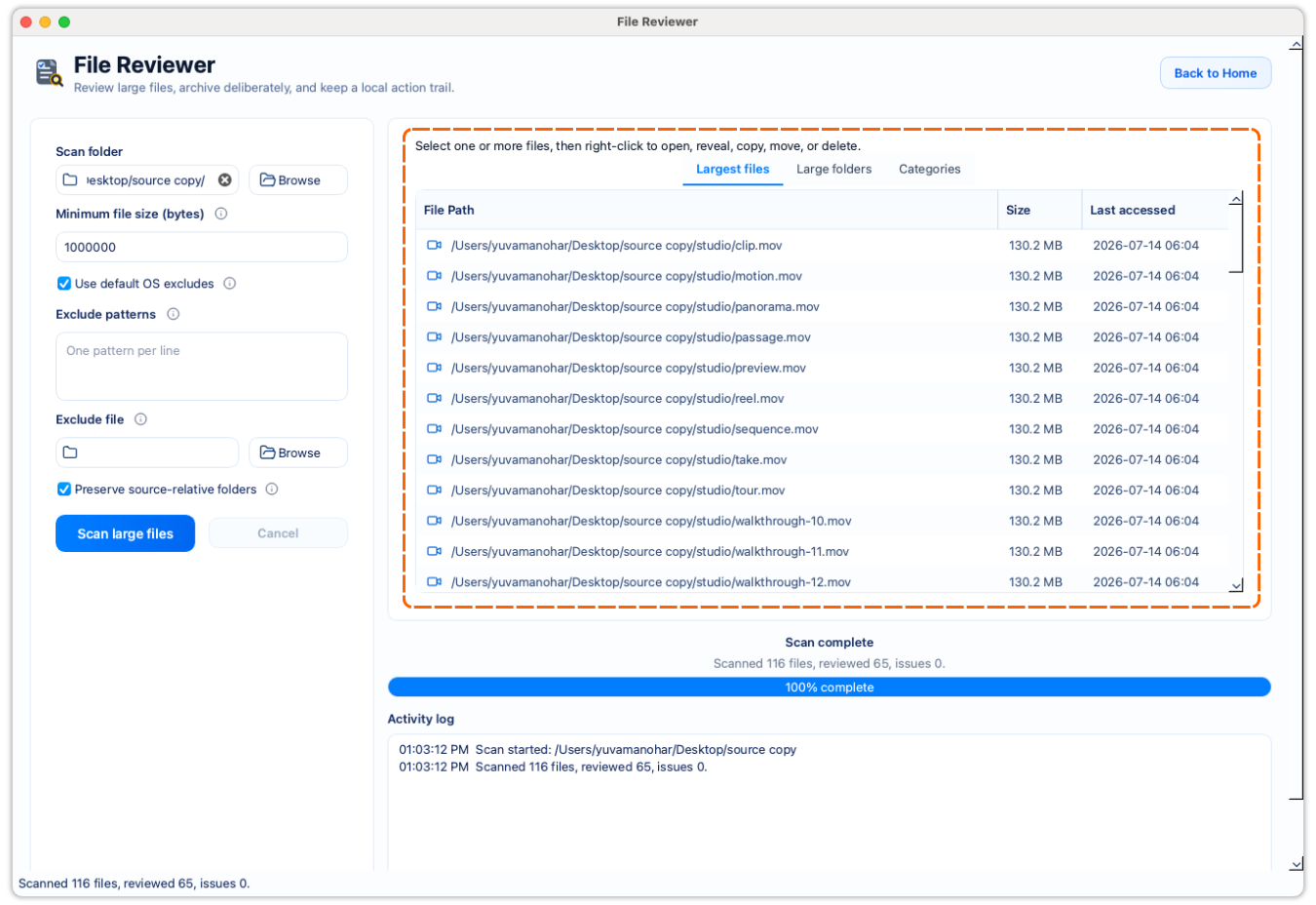
Review a Dropbox folder directly; no local Dropbox mirror is required.
Start with the largest files while keeping their full context visible.
Remote moves and deletes require write access and confirmation.
A deliberate workflow
Authorize the Dropbox account and select the remote location where you want to understand storage use.
Skip everyday files and focus on substantial videos, archives, installers, exports, and backups.
Use path, size, category, and modified date to decide whether a file is an old export or something still needed.
Use write authorization only when needed, confirm the action, and check Dropbox recovery settings before removing a remote original.
Start with storage-heavy files instead of manually browsing every nested folder.
Copy or move a file to a local archive only after checking whether it still serves a purpose.
A remote file's size is not a verdict—review it and Dropbox recovery settings before removing it.
Product walkthrough
The walkthrough shows how FileLever sorts the largest files first and keeps the action choice deliberate.
Common questions
Yes. FileLever scans the Dropbox folder you authorize directly.
No. Review its full path and purpose, then explicitly approve any remote delete or move action.
FileLever is available now on macOS, with Windows and Linux planned.