
Make the cross-location difference visible
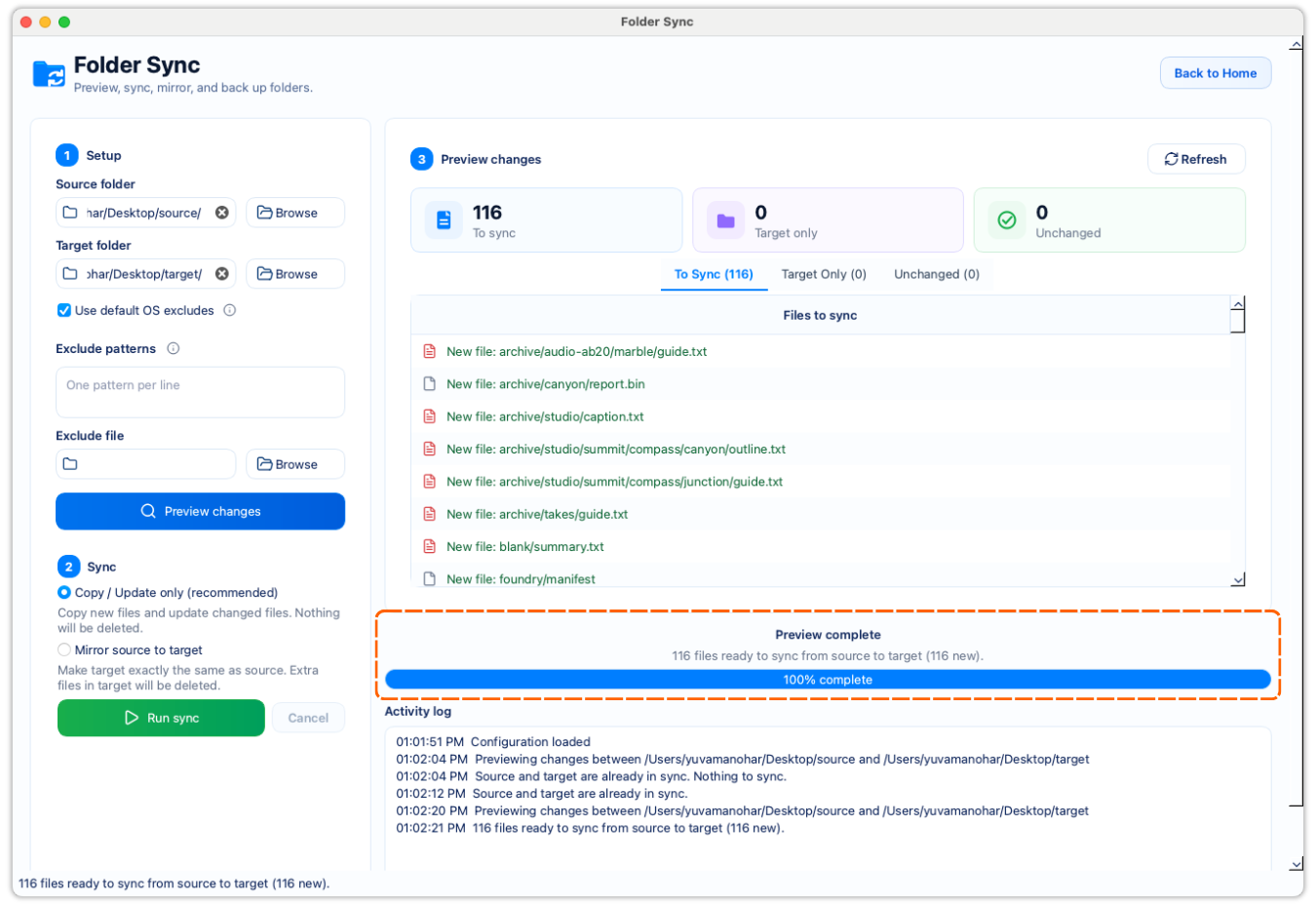
See what changed between the Mac folder and the locally synced Google Drive folder before any copy, cleanup, or mirror action begins.
Protect copies across locations
When a working folder on your Mac and a Google Drive folder have both changed, protect the right version before you copy or mirror anything. Install Google Drive for desktop if needed, let it put the Drive folder on your Mac first, then let FileLever compare it with your working folder so every next step is visible.
FileLever is available now on macOS. Windows and Linux builds of FileLever are planned. Your files stay under your control.
In Drive for desktop, open Settings → Preferences → Folders from Drive and check whether My Drive uses Stream files or Mirror files. With streaming, explicitly make the folder available offline and keep Drive for desktop running. Mirroring stores My Drive locally and needs room for that copy.
Wait for the selected files to finish downloading and for pending Drive changes to settle. Open a few ordinary files in Finder to check local access. Choose a separate working folder as the other side; do not compare a folder with itself or one of its own subfolders.
Assume Project on your Mac is the intended current source, and Project Backup inside the local Drive folder is the target. These filenames illustrate decisions to make in the preview; they are not results from a recorded account.
| Example | Decision |
|---|---|
| Source has new-plan.pdf; the Drive target does not | Review it in To Sync before adding the target copy. |
| Both folders have budget.csv with independent edits | Inspect both versions first. Do not assume the local source should overwrite the Drive edit. |
| The Drive target alone has approved-2025.pdf | Keep it with copy/update if it is deliberate archive material. Mirror may remove it. |
FileLever finishes the approved local action; Google's client then reconciles that folder with the cloud. Wait for Drive for desktop to finish and inspect the corresponding cloud folder before relying on it as a recovery copy. A completed FileLever run alone does not confirm cloud upload completion.
Local deletions in a Drive-managed folder can propagate to the cloud. Use ordinary downloaded files for this workflow; do not treat a Google Docs, Sheets, or Slides shortcut as a standalone backup of the cloud document.
Compare a local folder with a Google Drive client sync folder before syncing either one.
Keep target-only files visible before you choose copy/update or mirror.
Keep Drive cloud sync in Google's client; FileLever works on the local folder it creates.
A deliberate workflow
If Google Drive for desktop is not installed yet, download it from Google, sign in, and sync the Drive folder you need so it appears as a local folder on your Mac.
Set the Mac folder as one side of the comparison and the local Google Drive sync folder as the other.
Leave out temporary, generated, or unrelated files before you compare the two locations.
See files to sync, target-only files, and unchanged files so you understand what differs before you act.
Use the preview to decide whether the Drive sync folder should be updated conservatively or made to match the local folder more exactly.
See what changed between the Mac folder and the locally synced Google Drive folder before any copy, cleanup, or mirror action begins.
The preview makes it easier to decide whether you want a conservative update or a more exact replica.
FileLever actions run on the local sync folder. The Google Drive client reconciles those local changes with your Drive account afterward.
Product walkthrough
This general FileLever preview demo shows the difference groups to review. Use the setup instructions above to make your Google Drive folder available locally first; the recording does not demonstrate Drive for desktop setup.
Common questions
No. FileLever does not connect directly to your Google Drive cloud account. Download Google Drive for desktop from Google, sync the Drive folder locally first, then compare that local folder in FileLever.
Mirror can remove target-only files from the local Drive sync folder after review. Those local deletes are then reconciled by the Google Drive client with your Drive account.
FileLever is available now on macOS, with Windows and Linux planned.