
Avoid blind cleanup in Drive-backed folders
See each duplicate group with its path and reclaimable space before choosing which copy stays.
Reclaim Drive space with proof
Google Drive folders can accumulate repeated exports, copied uploads, old archives, and duplicate project files over time. Once your Drive copies are current, install Google Drive for desktop if needed, sync the folder locally, then let FileLever confirm exact duplicates and review every matching group before reclaiming space.
FileLever is available now on macOS. Windows and Linux builds of FileLever are planned. Your files stay under your control.
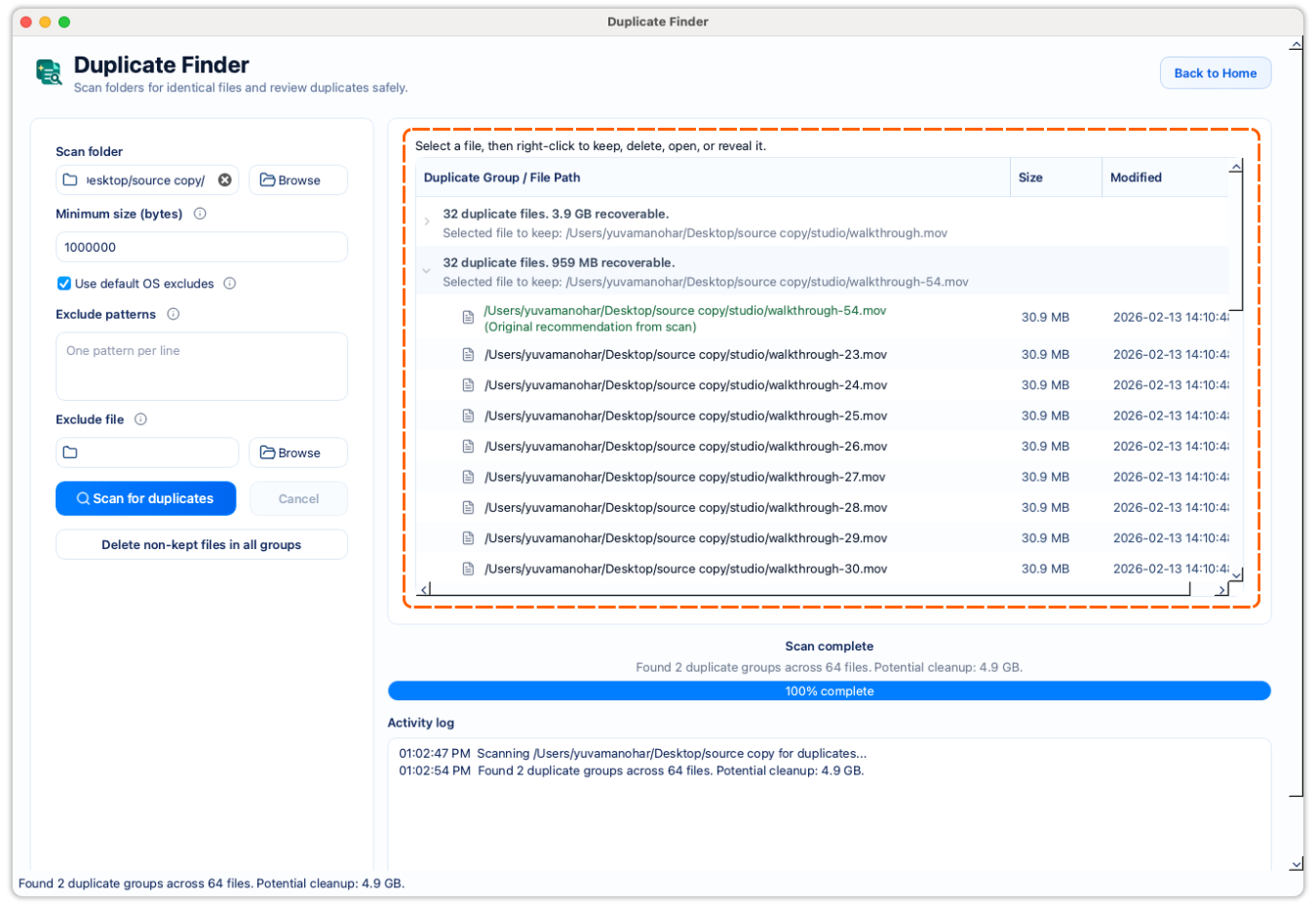
Review exact duplicate groups in a Google Drive client sync folder.
Confirm exact matches instead of relying on duplicate-looking filenames.
Keep cleanup local and deliberate; Google's client updates the cloud copy afterward.
A deliberate workflow
If Google Drive for desktop is not installed yet, download it from Google, sign in, and sync the Drive folder where repeated uploads, archives, or exported files have built up.
Start with that local Google Drive sync folder once the files you care about are available on disk.
Use minimum size and exclusions to keep the review focused on files that actually belong in the cleanup decision.
FileLever narrows likely matches by size, then verifies exact matches before it presents them as duplicate groups.
Keep the copy that belongs in the right folder, then remove only the extra copies you have reviewed. Cleanup is a local filesystem action; the Google Drive client reconciles those changes with your Drive account.
See each duplicate group with its path and reclaimable space before choosing which copy stays.
Identical files can still serve different purposes in different folders, so FileLever keeps that context visible.
FileLever cleans up the local sync folder after review. It does not delete remote Drive items through a cloud API.
Product walkthrough
This walkthrough shows FileLever scanning a Google Drive folder synced locally by the Google Drive client, confirming exact duplicates, and keeping every keep-or-remove decision visible before cleanup.
Common questions
Install Google Drive for desktop, sync the folder you care about locally, scan that local Drive folder in FileLever, confirm exact matches, then review each group before cleanup.
No. It uses exact-match logic so duplicate-looking names alone do not become cleanup recommendations.
No. FileLever deletes from the local Google Drive client sync folder after review. The Google Drive client reconciles those local changes with your Drive account.
FileLever is available now on macOS, with Windows and Linux planned.