
Keep the difference visible
Know what would upload, download, change, or remain before the sync runs.
Multiply copies to Dropbox
When a working folder and its Dropbox copy have both changed, protect the right version first. FileLever connects directly to the Dropbox account you authorize, compares the selected locations, and makes the next sync decision visible before files move.
FileLever is available now on macOS. Windows and Linux builds of FileLever are planned. Your files stay under your control.
Dropbox is a direct FileLever integration; a locally synced Dropbox folder is not required.
Preview changes and exclusions before the sync starts.
Remote writes and mirror cleanup require explicit authorization and confirmation.
A deliberate workflow
Sign in to the Dropbox account you want to use and authorize the access needed for the folder and action you select.
Set the folder that should define the current version as the source and the location you want to update as the target.
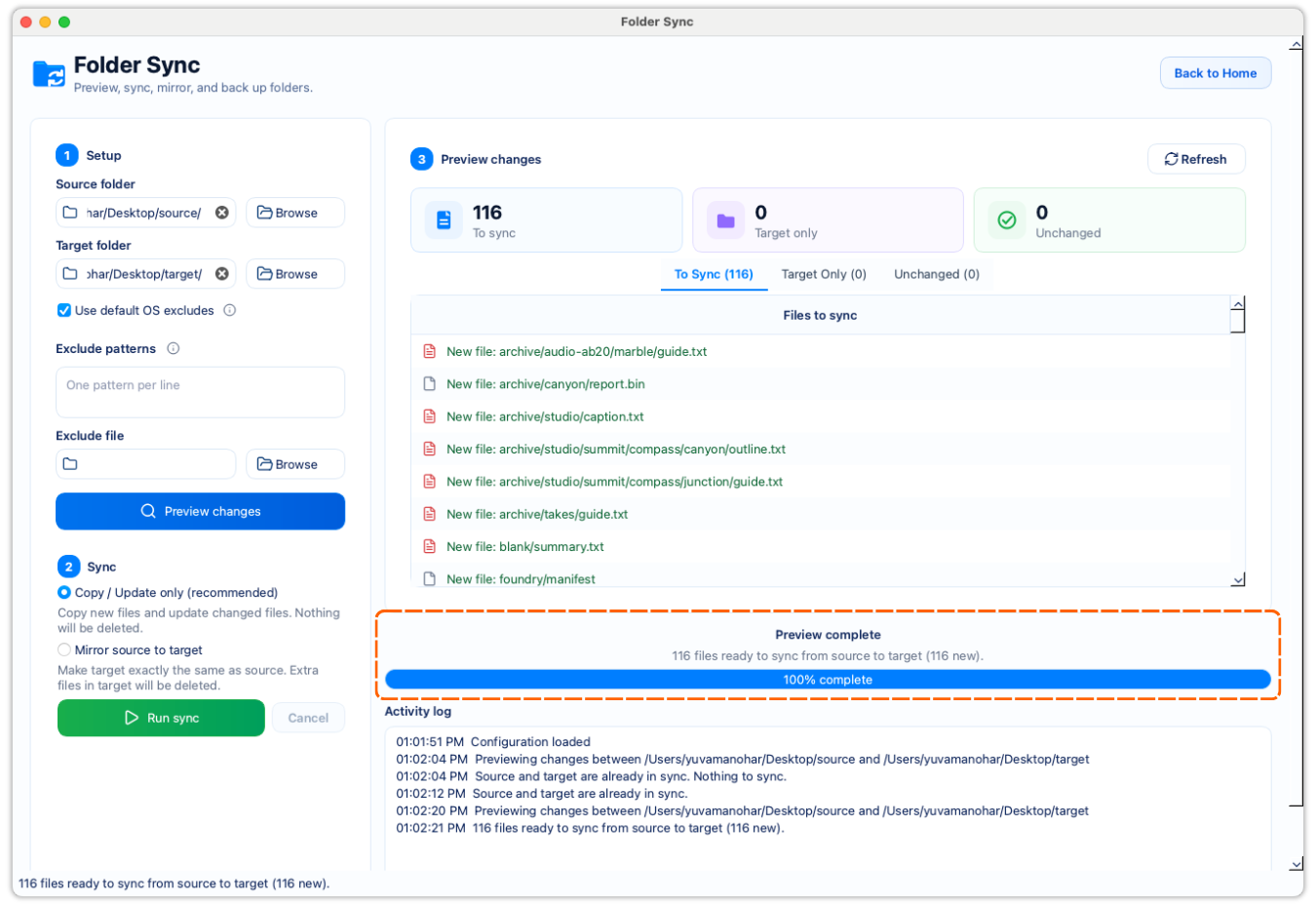
Exclude generated or unrelated files, then review files to sync, target-only files, and unchanged files before any transfer starts.
Use copy/update to preserve target-only files. Choose mirror only when the target should match the source and you have reviewed its target-only files.
Know what would upload, download, change, or remain before the sync runs.
Copy/update preserves target-only files, which suits backups and archives that may have legitimate extras.
Make an exact replica only after checking every target-only file and your Dropbox recovery settings.
Product walkthrough
The walkthrough shows how FileLever separates files to sync, target-only files, and unchanged files before you choose an outcome.
Common questions
No. FileLever connects directly to the Dropbox account you authorize for this workflow.
Yes. FileLever shows files to sync, target-only files, and unchanged files before you confirm a copy/update or mirror run.
FileLever is available now on macOS, with Windows and Linux planned.